

Ever since the release of APEX 18.1, the APEX development team has been adding features which help developers integrate with other cloud services. It started with Social Sign-On which allows you to authenticate APEX users using authentication providers like MS Azure Active Directory (AKA Office 365), Google, Facebook etc. Having implemented MS Azure AD sign-on with APEX for several clients, we looked at what other services from the Office 365 suite could be integrated with APEX. In this post, I will explore three possibilities and explain why you may find them useful. I am not going to get into step-by-step detail here just raise awareness and inspire ideas.
Background
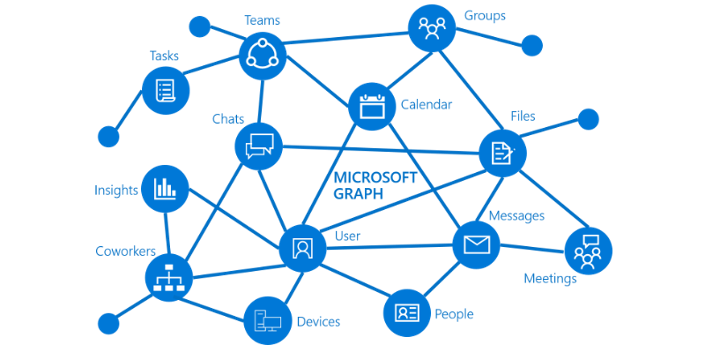
Microsoft Office has an overwhelming share of the Cloud based corporate email market and a significant share of the Cloud based corporate office suite market. It is the Go-To collaboration technology for most large companies. Being able to interact with MS Office 365 is becoming essential for many business workflows. The corner stone for integrating with Office 365 is Microsoft’s Graph API. The MS Graph API provides a unified REST interface that you can use to programmatically interact with the many services contained in the Microsoft Office 365 suite. Having a unified interface makes working with the MS Graph API much easier for developers. Once you get the hang of one API, you are halfway there to understanding all of them.
Tip: Check out the MS Graph Explorer to try out the MS Graph APIs.
Azure Active Directory ‘App registrations’
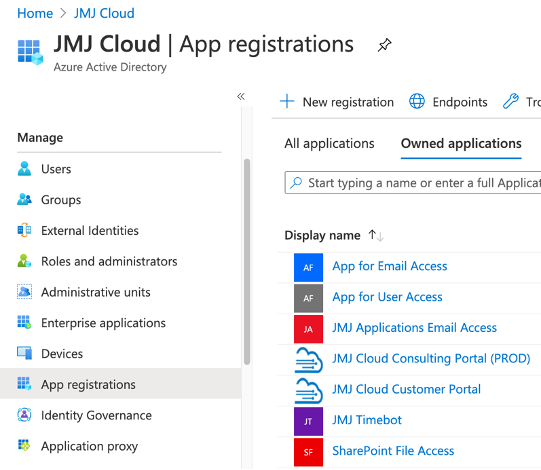
Before you dive into the code, you will need to make yourself familiar with some aspects of Microsoft Azure Active Directory, specifically, ‘App registrations’. An App registration is set of configurations that control things like which users/domains can login to your App and what permissions your application has (e.g., read or write files to SharePoint).
For example, here is a list of Applications Registrations we have at JMJ Cloud.
API permissions
API permissions allow users of the ‘App registration’ to perform certain actions with Office 365 services. Here is an example of ‘API permissions’ which are used by one of our internal APEX applications to automatically process inbound email.
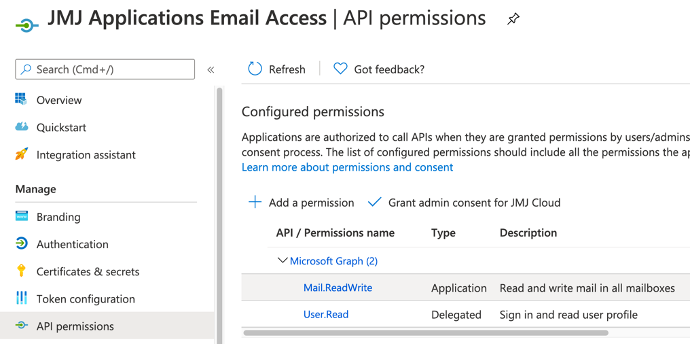
These types of permissions (Application permissions) are global to your whole Office 365 tenant. For the above example, this means you can read and write email for any user.
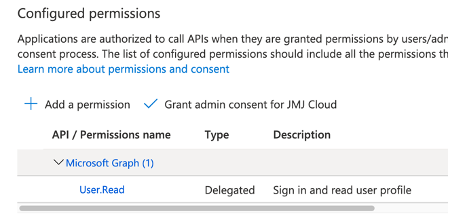
The below permissions are utilized for an App registration that is used purely for Authenticating users into our internal applications. These are ‘Delegated permissions’ and are specific to each logged in user. This means that you can only perform actions in Office 365 on behalf of the logged in user.
‘Application (client) ID’ and a ‘Client secret’
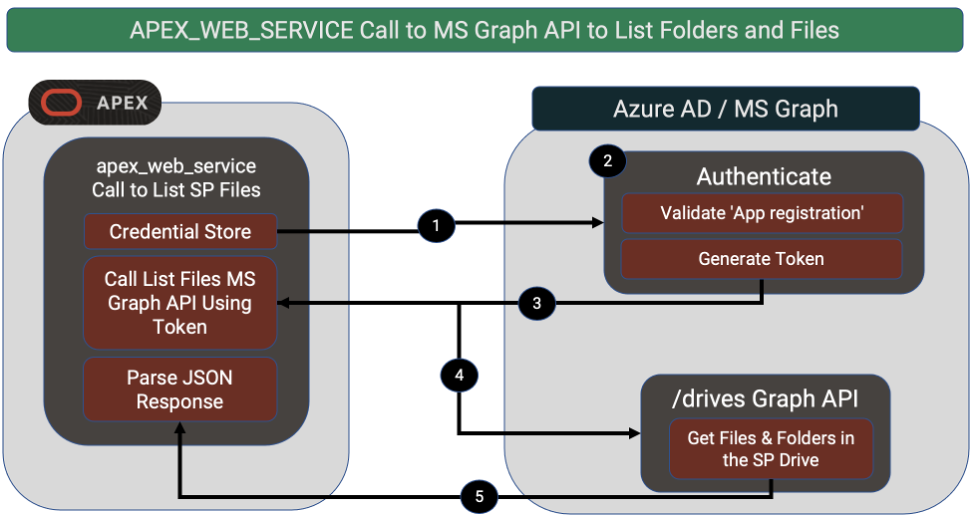
When you create an App registration, Microsoft generates a ‘Application (client) ID’ and you can then generate one or more ‘Client secrets’. The combination of a ‘Application (client) ID’ and a ‘Client secret’ is used by APEX to get a token which is required to call the MS Graph APIs. APEX has you covered here because it automatically keeps track of tokens (and their expirations) and fetches a new one when it needs to.
Securing ‘App registrations’
Once someone has the ‘Application (client) ID’ and a ‘Client secret’, they can effectively perform any actions allowed in the ‘API permissions’ section. It is a good idea to create separate App registrations for each Office 365 service you want to access (SharePoint, Email, Sign-On etc.). This way if the credentials for one App registration were to get into the wrong hands, the damage is limited to that one service.
Once you have created the appropriate App registrations in Azure AD, you can get started configuring APEX to integrate with Office 365.
Sign-On to APEX with MS Azure AD
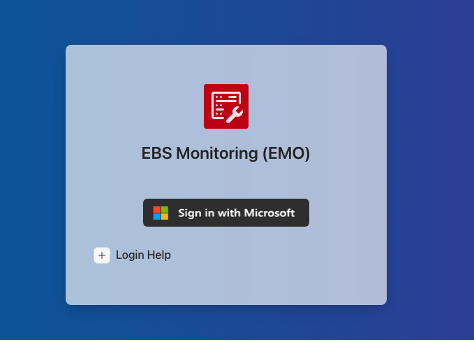
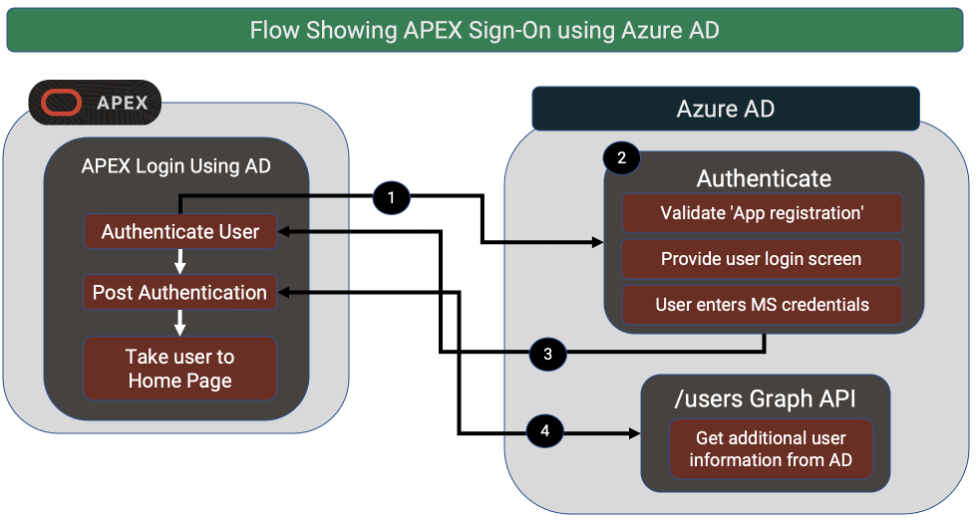
This is perhaps the easiest way to get started with APEX and the MS Graph APIs. It also offers arguably the biggest bang for the buck. These days, most users do not expect to have to remember different passwords for different applications. Being able to have users login to your APEX applications using their Office 365 credentials adds credibility and reduces friction to your application. The ability to do this in APEX is made possible by APEX Social Sign-on. Social Sign-on allows you do declaratively configure an APEX authentication scheme to use any number of OAuth2 Providers (including Active Directory). Also, don’t forget that APEX allows you to have multiple Authentication schemes. So, if it makes sense, you can offer users a choice of signing-in with their Office 365 credentials as well as their credentials from other providers such as Google, Facebook and Okta.
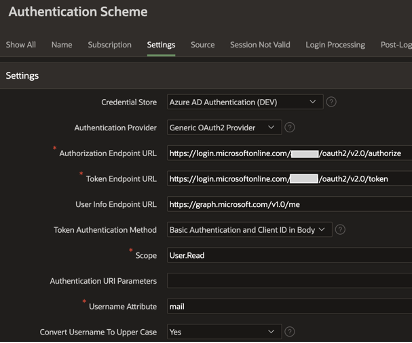
APEX Authentication Scheme
Here is a screen shot of an example APEX Authentication Scheme used for authenticating users using their Office 365 Credentials.
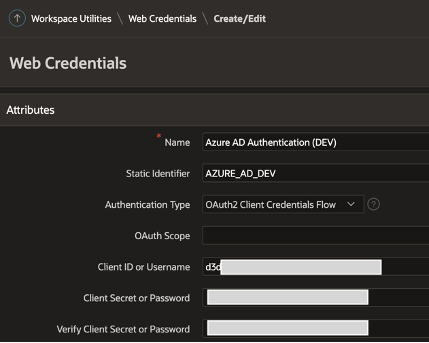
APEX Credential Store / Web Credentials
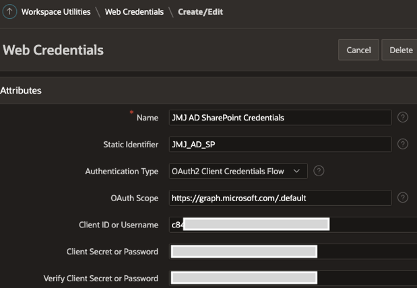
A key part of the above Authentication scheme is the ‘Credential Store’ entry. BTW, ‘Credential Store’ was renamed to ‘Web Credentials’ in APEX 20.2 so you may see me use them interchangeably in this post. In the context of Office 365, Web Credentials store the Client ID and Client Secret that APEX uses to link your Authentication scheme to a specific Azure AD ‘App registration’.
Authorization
When using a third-party authentication provider, you need to be extra careful. If you only create an Authentication scheme, you are essentially giving anyone with an Office 365 account the ability to sign-in to your application. You need to also include APEX Authorization scheme(s) which makes(s) sure users are allowed to access your application and also define what they are allowed to do if they are allowed in.
SharePoint & OneDrive
Most APEX Applications need some form of file storage and there are many Cloud object/file storage options. While SharePoint or OneDrive are not necessarily the best cloud file storage solutions, they are used extensively by business users who are familiar with the UI and search capabilities. Also, unlike services like AWS S3 or Oracle Object Storage, SharePoint & OneDrive automatically index documents so the document content can be searched via the SharePoint & OneDrive UIs. You can even call Graph APIs to search the content of documents and return a list of matching documents for your own UI. Storing files in SharePoint allows you to delegate security for these files to Office 365. You can decide which users have access to which files using standard Office 365 functionality. You can even create single use or time expired links to files and share them outside your organization.
Example Use Cases
- Uploading and downloading file Attachments to and from SharePoint in your APEX Application. In this scenario you control the entire interaction with SharePoint from APEX.
- Storing Oracle e-Business Suite attachments (instead of bloating your database by storing them in the database). In this scenario you intercept EBS and store files in SharePoint instead of the FND_LOBS table. Files appear to the user as an attachment and they are taken to SharePoint when they want to download a file.
Azure AD App registration
You will need to start by creating an App registration in Azure AD and make sure you assign the ‘Sites.ReadWrite.All’ permission. This permission will allow you full access to traverse the folder structure, create folders, upload, and download files etc.
APEX Web Credentials
As with sign-on, you will need to create Web Credentials that provide APEX the information it needs to access the ‘App registration’ and authenticate you so you can call the Graph APIs.
SharePoint and OneDrive Graph APIs
The MS Graph APIs you use for SharePoint and OneDrive are pretty much the same. There is an extra step in SharePoint to get from the SharePoint Site to the Documents folder (Drive) for the SharePoint Site. Once you have the Drive ID, the steps for traversing folders, uploading, and downloading files are the same for both. MS Graph APIs allow you to do the following:
- List Files and Folders
- Create and Delete Folders
- Upload and Delete Files
- Get a File
Calling MS Graph APIs from APEX
Interacting with SharePoint & OneDrive files from APEX is trickier than setting up single sign-on, but not much.
You have a couple of options; one is to use APEX ‘REST Data Sources’ and the other is to call the apex_web_service PL/SQL APIs. Creating a ‘REST Data Source’ is the best option, especially for data that is flat (e.g., a list of folders or a list of emails). One key advantage is that ‘REST Data Sources’ can be used as data sources declaratively throughout APEX (IRs, IGs, Charts, LOVs etc.).
If the payload from Microsoft contains embedded arrays, then you can use apex_web_service to get the JSON then parse the JSON and traverse the arrays yourself.
The function below shows an example of using apex_web_service to call an MS Graph API. The function fetches a file from SharePoint into a BLOB in PL/SQL. Developers do not need to worry about fetching tokens etc. from Microsoft. APEX uses the referenced Credential Store (identified by ‘p_credential_static_id’) to automatically get a token from Microsoft (if it needs to). The token is then automatically passed to the Graph API.
FUNCTION get_file_from_sharepoint(
  p_credential_static_id IN VARCHAR2,
  p_drive_id             IN VARCHAR2,
  p_item_id              IN VARCHAR2
)
RETURN BLOB AS
  l_blob       BLOB;
  l_url        VARCHAR2(500);
BEGIN
  l_url := 'https://graph.microsoft.com/v1.0/drives/' ||
           p_drive_id || '/items/' || p_item_id || '/content';

  l_blob := apex_web_service.make_rest_request_b(
    p_url                  => l_url,
    p_http_method          => 'GET',
    p_credential_static_id => p_credential_static_id
  );

  RETURN l_blob;
END get_file_from_sharepoint;
Conclusion
I have barely scratched the surface with what is possible integrating APEX with MS Graph APIs. The combined power of APEX combined with the Office 365 ecosystem is a powerful combination which cannot be ignored (especially in a corporate setting). I encourage you to dig deeper and incorporate Office 365 into your APEX Application wherever it makes sense.
Author
Jon Dixon, Co-Founder JMJ Cloud