
One minor drawback of the Popup LOV (introduced in APEX 19.2) is that it seems to be impossible to quickly clear an existing value via the keyboard. This is not a big deal normally as you could set a ‘NULL value Display’ in the LOV and the user can just pick that. When you are looking to save a few clicks in a high-volume data entry application, however, reaching for the mouse is a problem. In this post I will review an alternative where we can clear an existing Popup LOV value using the Delete key by creating a simple Dynamic Action.
Scenario
You have selected a value from a Popup LOV, and now you want to clear it using one key. You have 100 more orders to enter this morning and you don’t want to have to reach for the mouse or tab to the NULL value display value and select that. Try as you might Delete, Shift Delete, Ctrl Delete, Space Bar (oops that popped up the LOV again) you just wont clear the field out.
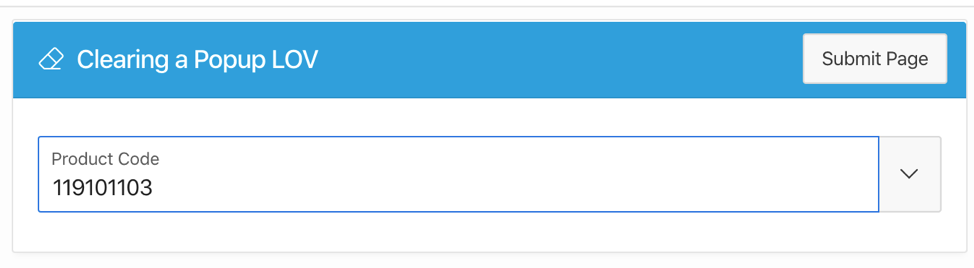
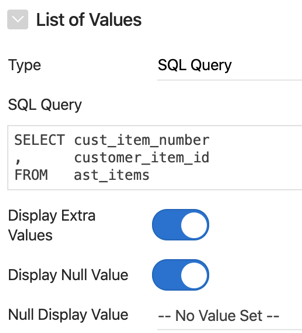
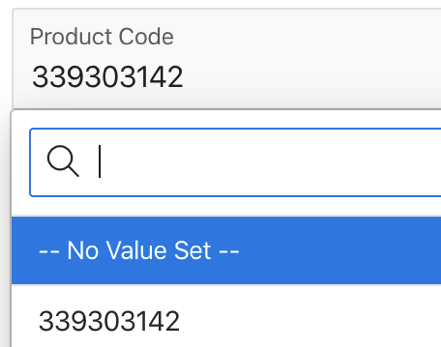
How to allow the user to clear the Product code they selected and leave the field empty with just one keystroke? Of course, you could set a ‘Null Value Display’ in the LOV definition. But this can be a little confusing to users. For starters what value do you set the NULL Value Display field to? ‘Select me To Clear this Field’?
The One Key Approach
There are a number of ways to tackle this. One that has worked well for me is to create a simple Dynamic Action which sets the field value to NULL when the user is focused on the field and hits the Delete key.
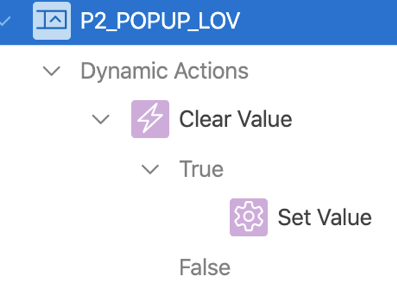
Here is the definition of the Dynamic Action:
How Does it Work
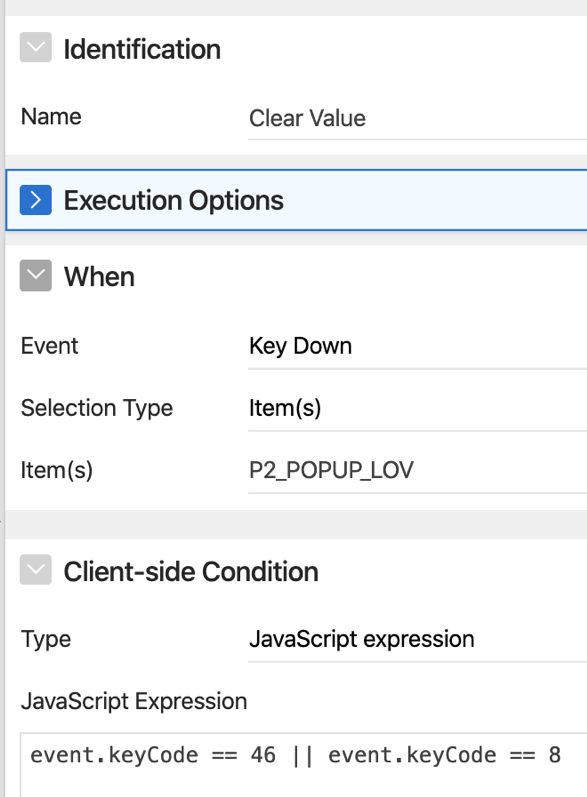
The Dynamic Action is waiting for the user to press either the Delete key (Keycode 46) or Backspace key (Keycode 8), while they are focused on the P2_POPUP_LOV field. This is done by creating a ‘Key Down’ event and using a ‘JavaScript expression’ Client-side Condition to determine whether the True action should be fired.
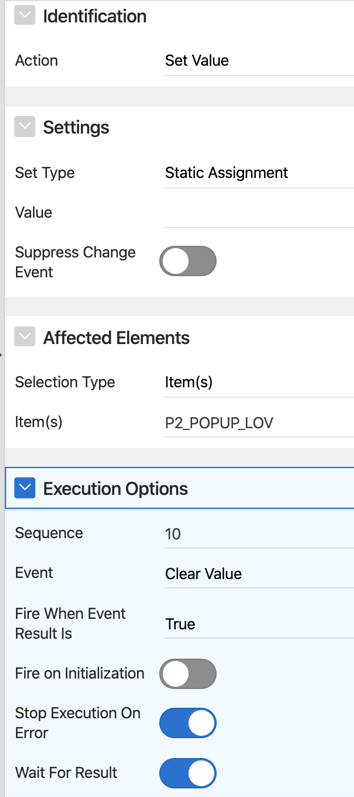
When this condition is met, the True action is setting the value of the field P2_POPUP_LOV to nothing/blank (Set Type ‘Static Assignment’, Value
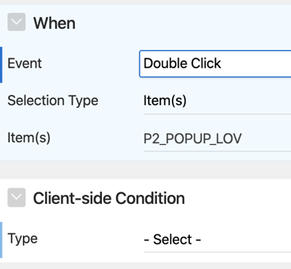
Another option that works quite well (but is a little less intuitive) is to use the ‘Double Click’ event to trigger the Dynamic Action when the user Double clicks on the Popup LOV field.
FYI, the site https://keycode.info/ comes in handy if you ever need to know what the JavaScript keyCode is for a given key (or combination of keys). As you press keys on your keyboard, the site shows you the associated KeyCode in real time.
Conclusion
I would not recommend the Dynamic Action approach normally as there is a decent workaround in setting the NULL Value Display on the LOV. Having said that, every App has those one or two requirements that make the App feasible. If speedy data entry is the killer feature for your App then this might be worth a try.
Jon Dixon, Co-Founder JMJ Cloud