
In this post I will demonstrate a useful feature of APEX that does not get a lot of attention. ‘User Preferences’. It’s another one of those APEX features that saves you time. This allows you to focus more time on building important business logic that adds value to your business.

Overview
APEX User Preferences allow you to store name value pairs by user and APEX application. These name value pairs are persisted using an internal APEX table. You can set, get and delete user preferences declaratively or via APEX provided APIs.
You can imagine these name value pairs are stored as follows:

Why are they Useful?
There are many reasons why you may want to store values related to a particular user:
- Default Time zone
- Default language
- Notification preference
- Default home screen
- Default unit of measure
- URL to profile picture
- etc.
Use Case
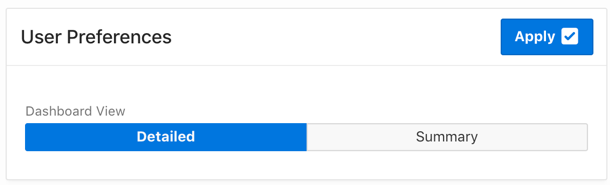
For the remainder of this post, I will demonstrate how to get and set preferences using a simple example. In this example, we have a user preference which determines if the user sees a Detailed or Summarized dashboard view when the user logs in.
Here is a screen shot of a sample preferences page which I created where the user can set their default dashboard view.
Setting Preferences
There is no need to formally create a user preference before setting a value for it. When you set a user preference for the first time, APEX creates a record in an internal table to store the preference and its value. This value is stored until you either change or delete the preference.
There are two ways to set a preference value.
1. Declaratively in a Page Process
One of the great things about user preferences is that you can set a user preference declaratively (no code) using a page process. The below page process is set to run when the user clicks the ‘Apply’ button (from our example above). When it runs, the user preference ‘DASHBOARD_VIEW’ is set to the current value of the page item ‘P3_DASHBOARD_VIEW’.
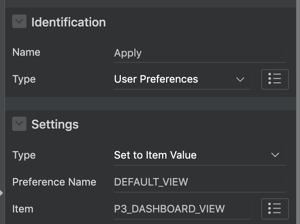
The key here is the type ‘User Preferences’ (under the ‘Identification’ section).
The type under the ‘Settings’ section has three options, two of which (in bold) can be used to set a user preference. Their names are pretty self-explanatory.
- Reset Preferences (remove all preferences for current user)
- Set to Item Value
- Set to Item Value if Not Null
More about the first option later in the post.
2. Programmatically Using an API
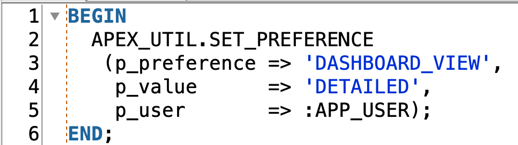
APEX also provides and API which you can use to set User Preferences. In the below code snippet, we are setting the user preference ‘DASHBOARD_VIEW’ to the value ‘DETAILED’ for the currently logged in user.
BEGIN
  APEX_UTIL.SET_PREFERENCE(
    p_preference => 'DASHBOARD_VIEW',
    p_value      => 'DETAILED');
END;
Getting Preference Values
There are also two ways to get a preference value.
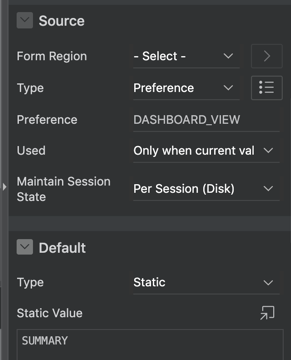
1. Declaratively Using Page Item Source
You can declare the source for a page item to be a User Preference (again no code). This means that when the page is rendered, the page item automatically picks up the value for the preference.
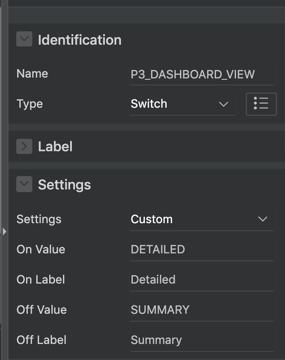
In our example, we need to initialize the item ‘P3_DASHBOARD_VIEW’ with the current value for the user preference ‘DASHBOARD_VIEW’.
2. Programmatically Using an API
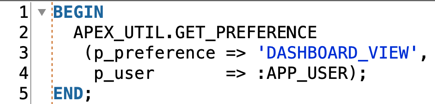
APEX also provides and API which you can use to get the value for a user preference. In the below code snippet, we are getting the current value for user preference ‘DASHBOARD_VIEW’ for the currently logged in user.
DECLARE
  l_dashboard_view VARCHAR2(100);
BEGIN
  l_dashboard_view := APEX_UTIL.GET_PREFERENCE(
    p_preference => 'DASHBOARD_VIEW');
END;
Purging User Preferences
It may not be completely necessary to purge user preferences but it may be useful when you are de-activating users who no longer work for your company. There are three options for purging user preferences.
1. Declaratively Using a Page Process
With this option you can purge all current user preference entries for a particular user and APEX Application. When the below page process runs, it will purge all user preferences for the current user and APEX application.
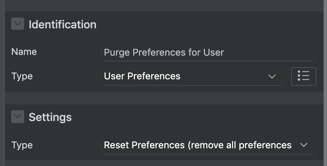
In the page process above, we again have Identification > Type set to ‘User Preferences’. This time, we have the Settings > Type set to ‘Reset Preferences (remove all preferences for current user)‘.
2. Via Workspace Administration
As a workspace administrator, you can view and purge user preferences for the currently logged in user or a specified user. You can access these options using the following navigation from Workspace Administration: Manage Service > Session State > Manage Preferences
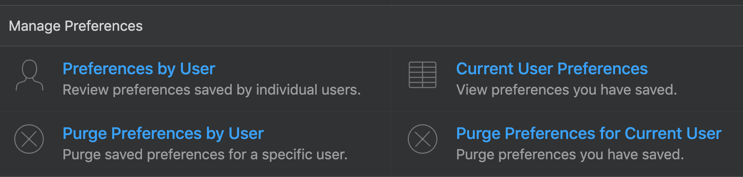
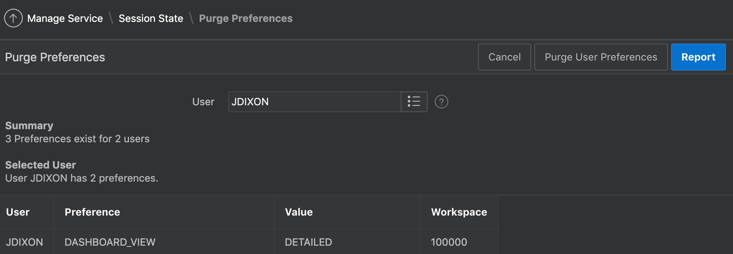
The screen shot below (from the ‘Purge Preferences by User’ option) shows preferences for user ‘JDIXON’. Clicking ‘Purge User Preferences’ will purge all preferences for this user.
3. Programmatically Using an API
Finally, there is an API you can call to purge a single user preference for a given user in the current application. The following code will delete the preference ‘DASHBOARD_VIEW’ for the currently logged in user in the current application.
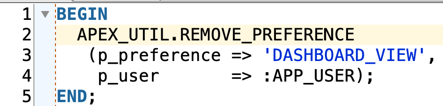
BEGIN
  APEX_UTIL.REMOVE_PREFERENCE(
    p_preference => 'DASHBOARD_VIEW');
END;
Conclusion
Without User Preferences, you would have to build a table and PL/SQL package to manage this kind of data in your APEX applications. The fact that this feature is baked into APEX saves you time and lets you focus on value-add features of your Application.
Here is the link to the APEX 19.1 documentation on user preferences.
Jon Dixon, Co-Founder JMJ Cloud